How to Create Your First Training Session
Creating your first training session in TRAKLearning is a straightforward process. This guide will walk you through each step to ensure you set up your session correctly.
Accessing the Session Creation Form
To create a new training session, follow these steps:
- Navigate to the Sessions page from the sidebar menu
- Click the 'Create Session' button in the top-right corner
- The session creation form will open with several tabs for different aspects of your session
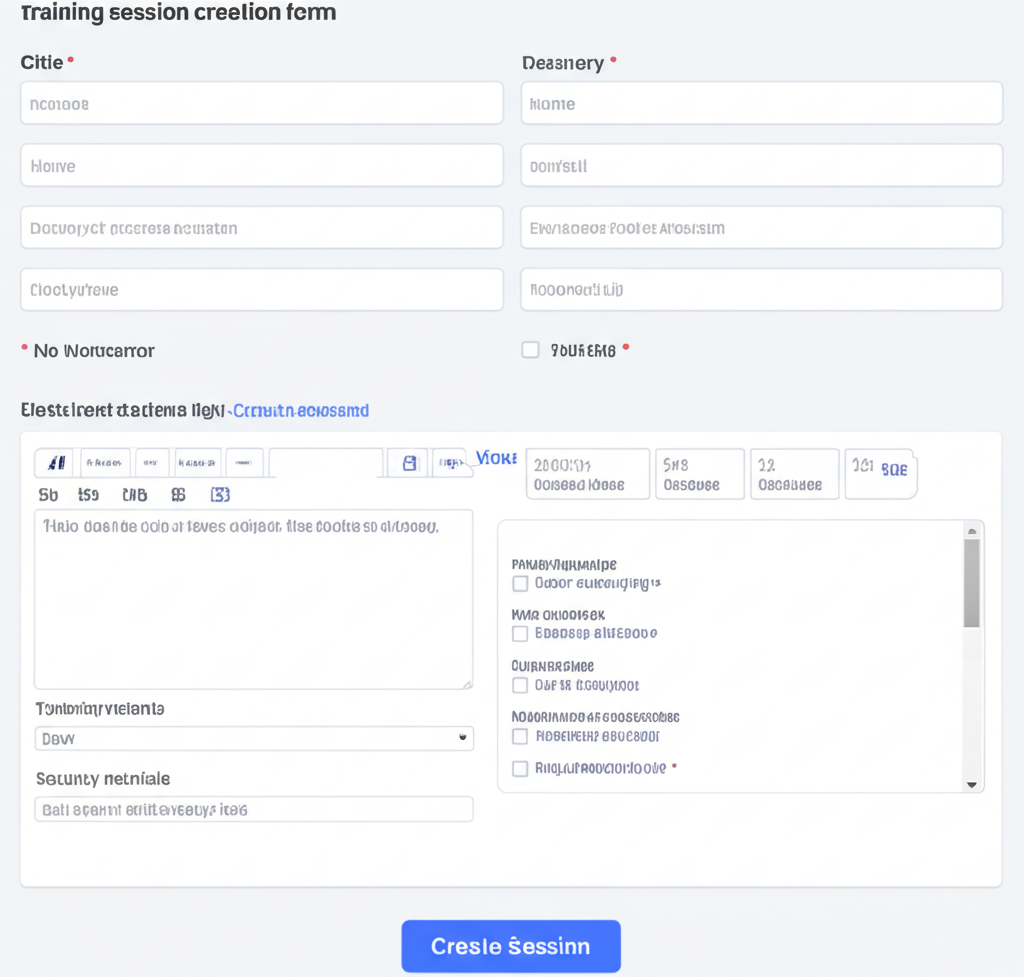
The session creation form with basic details tab active
Basic Session Details
In the first tab, you'll need to provide the basic details for your session:
- Session Title: Create a clear, descriptive title
- Description: Provide details about what will be covered
- Session Type: Choose from in-person, virtual, or hybrid
- Start Date and Time: When the session will begin
- End Date and Time: When the session will conclude
- Capacity: Maximum number of participants
Note
For virtual and hybrid sessions, you'll need to provide a video conferencing link in the next step.
Location and Resources
Next, specify where the session will take place and what resources you'll need:
- For in-person sessions, select a location from the dropdown or add a new one
- For virtual sessions, enter the video conferencing details
- Select any resources needed (rooms, equipment, etc.)
- Check resource availability for your selected time slot

The resource booking calendar showing availability
Trainer Assignment
Assign one or more trainers to your session:
- Search for trainers by name or expertise
- Check trainer availability for your selected time slot
- Assign primary and secondary trainers if needed
- You can also use the AI Trainer Recommendation feature to find the best match
Enrollment Settings
Configure how participants will enroll in your session:
- Open enrollment date: When registration opens
- Close enrollment date: Deadline for registration
- Enable/disable waitlist
- Set enrollment approval requirements (automatic or manual)
- Configure notification settings for enrollments
Review and Publish
Finally, review all the details of your session before publishing:
- Check all details across all tabs
- Preview how the session will appear to participants
- Save as draft if you need to complete it later
- Click 'Publish Session' when you're ready to make it available
Note
Once published, notifications will be sent based on your configuration, and the session will appear in the calendar and listings.
Managing Your Session
After creating your session, you can manage it from the Sessions dashboard:
- View and manage enrollments
- Update session details if needed
- Send announcements to enrolled participants
- Track attendance during the session
- Generate session summaries after completion
Congratulations! You've successfully created your first training session in TRAKLearning. As you become more familiar with the platform, you'll discover additional features to enhance your training programs.
Was this article helpful?
- Managing Session Attendance
Session Management
- Creating Recurring Sessions
Session Management
- Using the Session Calendar
Session Management
- Generating Session Reports
Reports & Analytics
If this article didn't solve your issue, our support team is ready to help.
Contact Support